

Chapter
2
Activate your Business Digital Voice with Webex account
To start using your Business Digital Voice with Webex account, you’ll first need to activate it. Activation gives you access to all the communication and collaboration features available on the platform.
After your account is created, you’ll receive an email from Verizon with instructions on how to activate your Business Digital Voice with Webex account and get started.
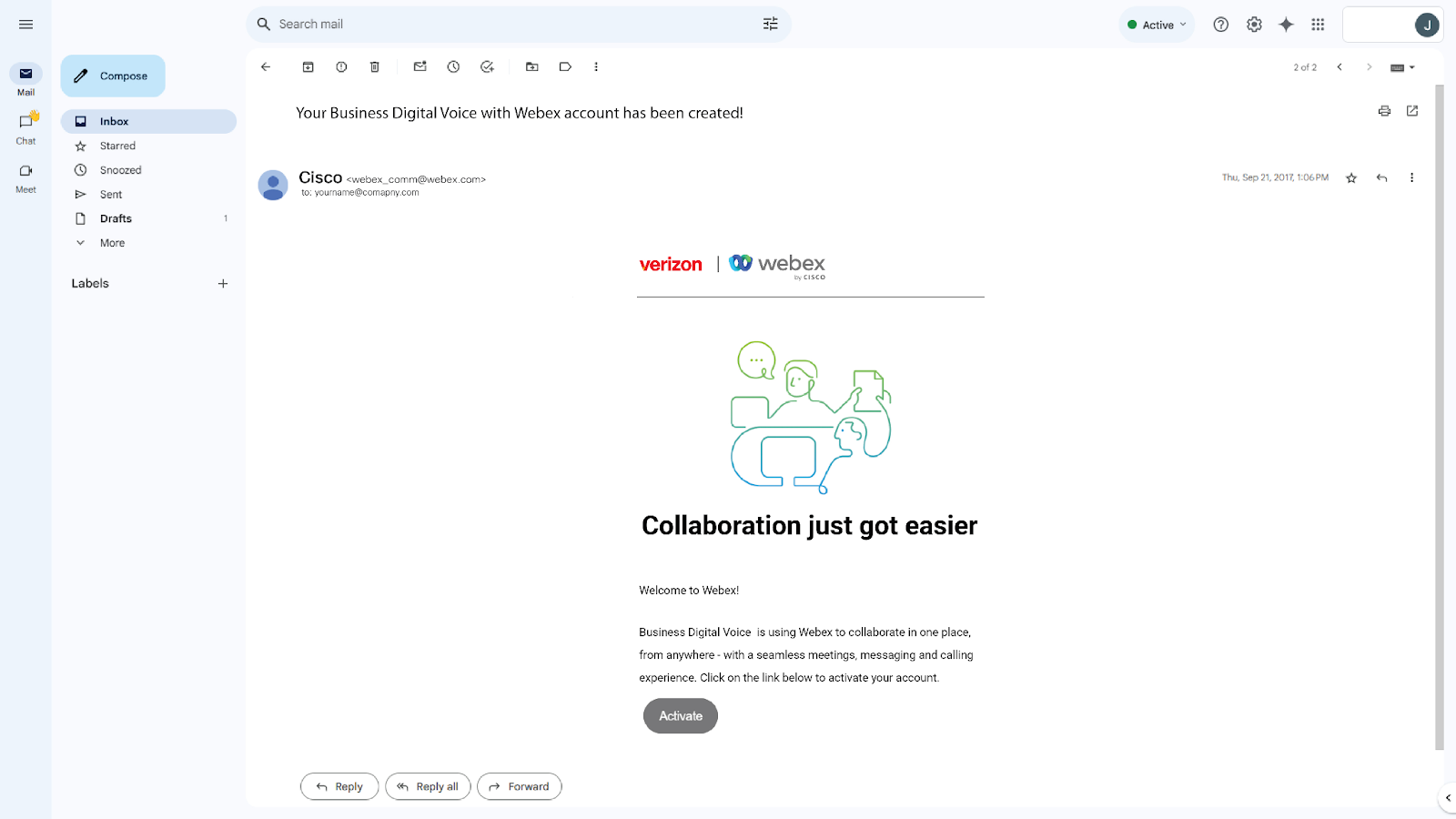
Activate your account
- From your activation email, click Activate.
- Your default browser opens.
- If the activation code is not automatically entered, please enter the code provided in your email.
- Enter a password you would like to use for your account.
- Click Create.
- On the Enter Your Name screen, your name should already be present. If not, please enter your name in the corresponding fields.
- Click Enter.
- Your account has now been successfully created and is logged into the Business Digital Voice with Webex web application.
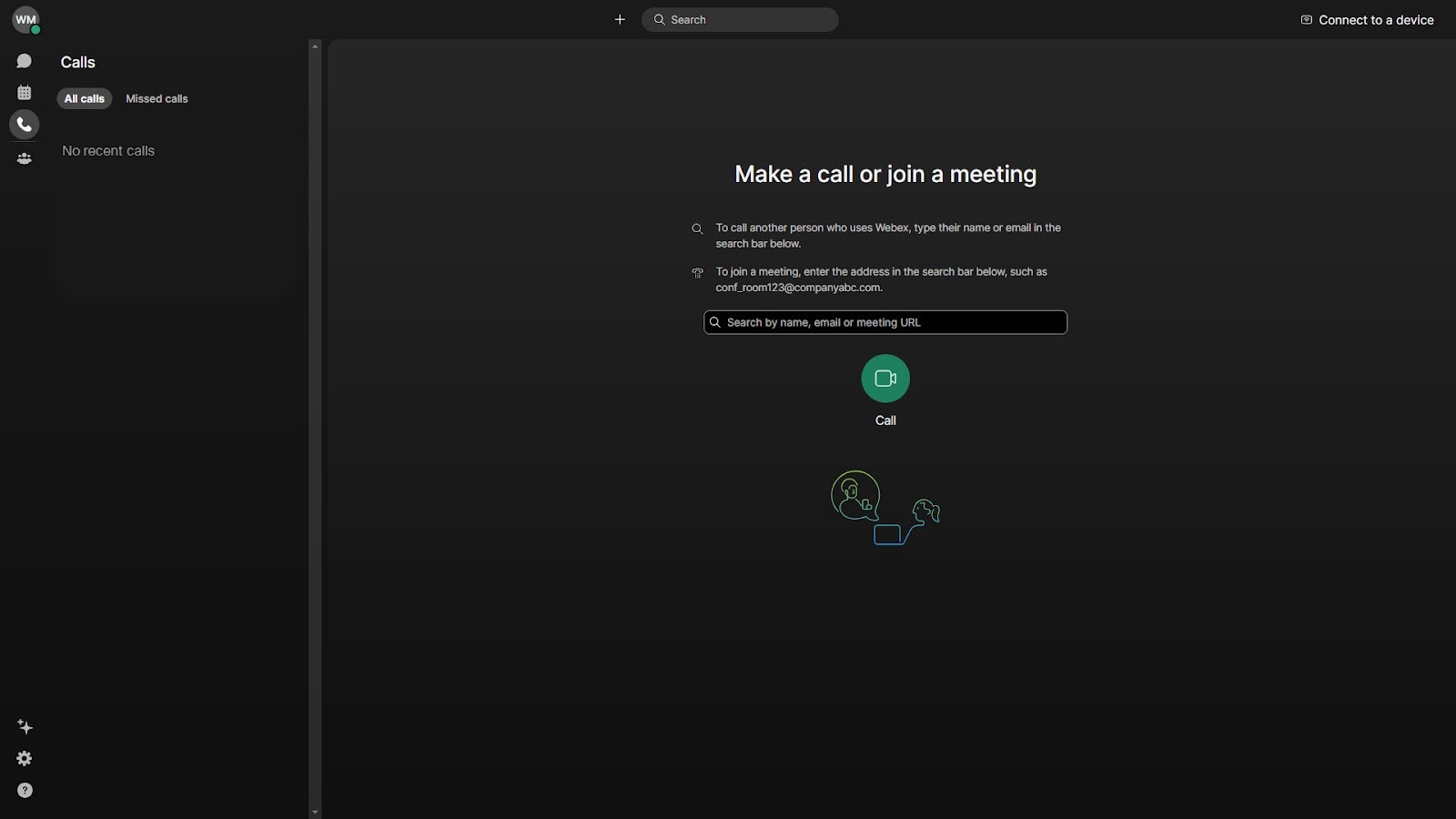
Access User Hub as an admin or end user
- From your preferred browser, go to User Hub.
- Enter your email address.
- Click Next.
- Enter your password.
- Click Sign in.
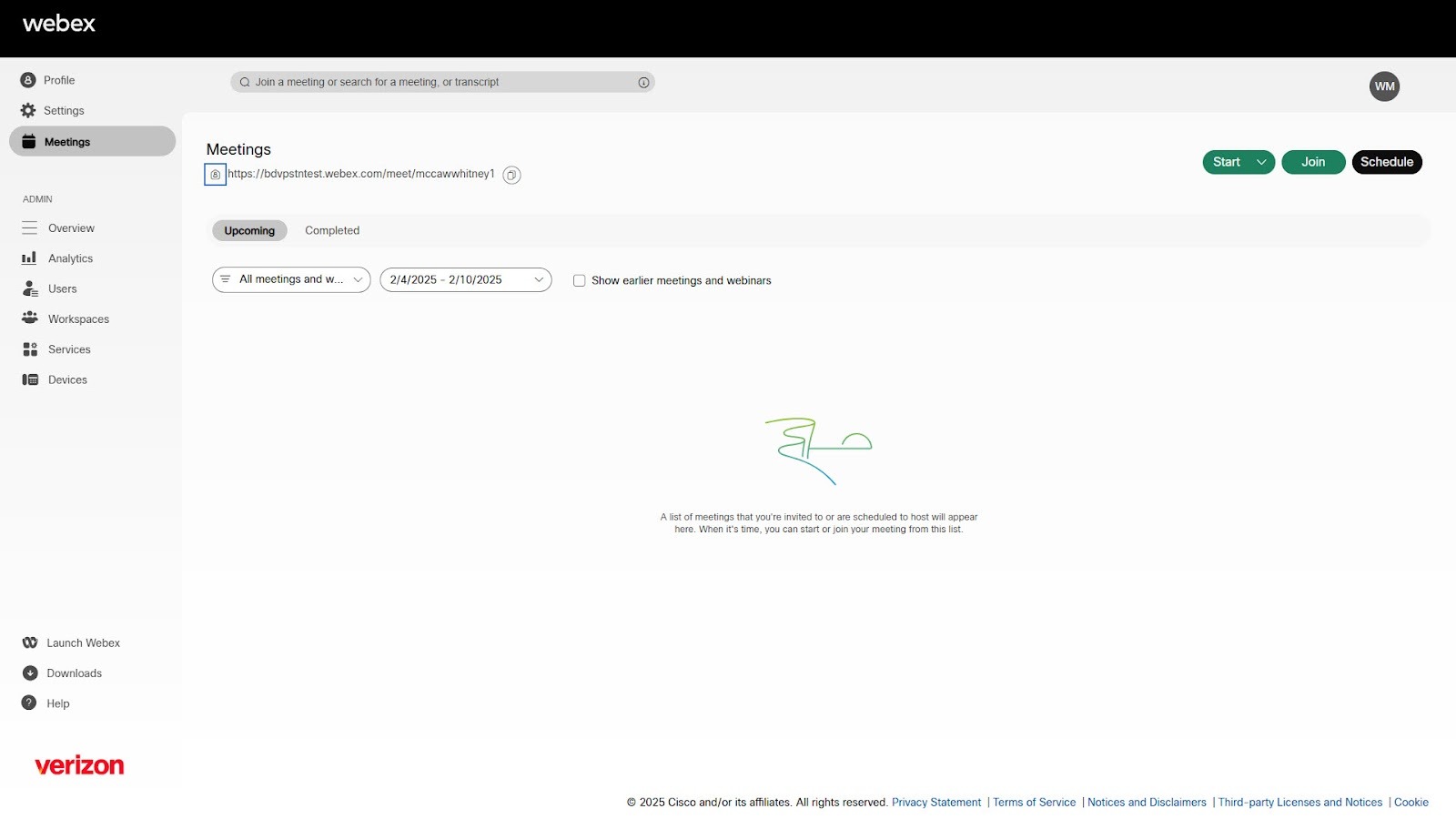
Once logged in, either the admin or end user dashboard appears, depending on your user level.